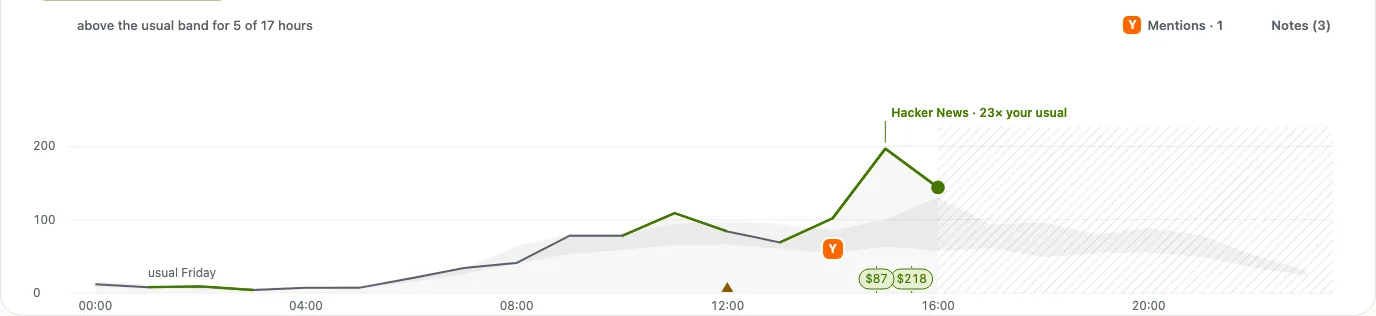
A bump in the line says that something happened. A marker says what. When a source or a tagged link brings its first visits, or a jump, on a day, trckable puts a small marker on that day: the source's name and how many more visitors it added, such as "Hacker News +40".
Read a marker
Point at a marker and it shows its name and number. Open it and it says it in words: "Hacker News sent 40 visitors on Oct 2". If several sources jumped around then, it adds "and 3 more around then". The one button, See these visitors, narrows the whole dashboard to them, so the pages they read and the countries they came from are one click away.
Under the headline, one line says the same for the biggest jump in the period, when one source explains most of the rise on a day: "Most of the Oct 2 jump came from Hacker News (+40)".
Know when a day gets a marker
A day is marked only when it is clearly more than usual. The source brought at least 5 visitors, added at least 5 on top of what it usually brings, brought at least 3 times the average of the 7 days before, and beat the best of those days by half again. The last rule keeps a long climb from being marked every day. Each source gets one marker, on its biggest day, and a chart shows three at most, the biggest ones.
trckable watches nine places people come from: Hacker News, Indie Hackers, Product Hunt, Reddit, X, LinkedIn, Google, Bing and AI assistants (ChatGPT, Perplexity, Claude). Tagged links, the kind you share with ?ref= or utm_source (see Your links), get a marker the same way.
Turn markers off
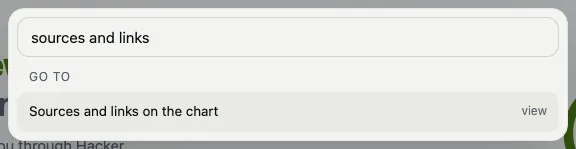
Markers are on by default and ask for nothing: there is nothing to set up. To hide them, open the ⌘K list and choose Sources and links on the chart, which switches them off, and on again the same way. The choice is kept in this browser.
Try it in trckable
Open your dashboard, choose a period with a busy day and open the marker on it. Not on trckable yet? Install it.
The newsletter
Notes on measuring what matters.
Occasional emails from Albi: new posts, one chart worth reading, what changed in trckable.
We send one email to confirm your address, and nothing more until you confirm. Every newsletter has a link to leave. What we keep, and who sends it: privacy.